How to Create, Edit, or Delete a Lab Order Template
A Lab Order Template is a predefined set of lab tests that providers can quickly select when ordering labs for a client. It helps standardize care and saves time by allowing multiple related tests to be ordered at once.
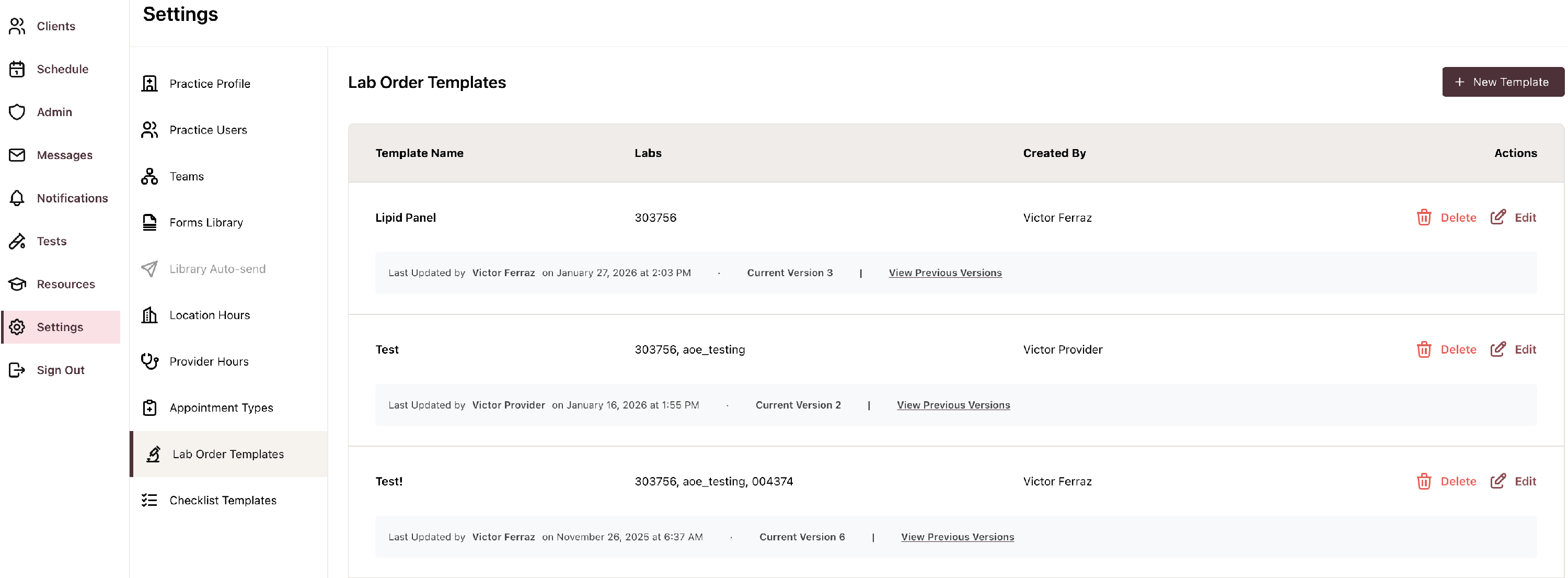
Navigate to Lab Order Templates
- From the left navigation menu, select Settings
- Click Lab Order Templates
Create a New Template
- Select + New Template (upper right)
- The New Lab Order Template panel will open
 Complete Fields
 Complete Fields
- (Required) Template Name - This is a name that is clear and descriptive for your practice. It does not need to match any specific Laboratory test name or. For example, 20-week prenatal panel.
- (Required) Performing Lab - this is the lab that will perform the test(s). This is based on the labs configured to your account.
- (Required) Labs - you may search for and add one or more lab tests to this template. Once added, each time you select this template, the included tests will automatically be included in the order. (Note, you can add and remove tests, if needed, on a client-by-client basis).
Save the Template
Select Save to save the template for future use when ordering labs for an individual client.
Edit Lab Order Templates
Lab Order Templates can be updated at any time by navigating to the Lab Order Templates from the Settings menu.
- Locate the template you want to update
- Select Edit in the Actions column
- Update any of the following as desired:
- Template Name
- Performing Lab
- Included Labs (add or remove lab tests)
- Select Save to apply changes
Delete a Lab Order Template
Lab Order Templates can be deleted at any time by navigating to the Lab Order Templates from the Settings menu.
- Locate the template you want to remove
- Select Delete in the Actions column
- A confirmation modal will appear: “Performing this action will permanently delete the template.”
- Select Yes, "Delete" to confirm or "Cancel" to exit without deleting